ClearCull · Release notes

What’s new in ClearCull

Every version, newest first. ClearCull offers each update when it starts, or you can check in Settings ▸ Check for updates; updates keep your projects, settings and licence.

1.4.1Latest

8 November 2026 · RAW+JPEG shoots count each photo once

  • When your camera saves a JPEG (or HEIF) beside each RAW, ClearCull now culls the RAW only. The JPEG is still copied in from the card, but it isn’t counted, culled or sent to Lightroom, and it moves with its RAW when you approve or undo. Works for every camera brand.
  • Shoots you’ve already culled are tidied the next time you open them: each RAW keeps the colour you gave the pair (your own choice wins over the auto cull’s). A copy of the project’s records is kept first, just in case. Approve again to send the RAWs only.
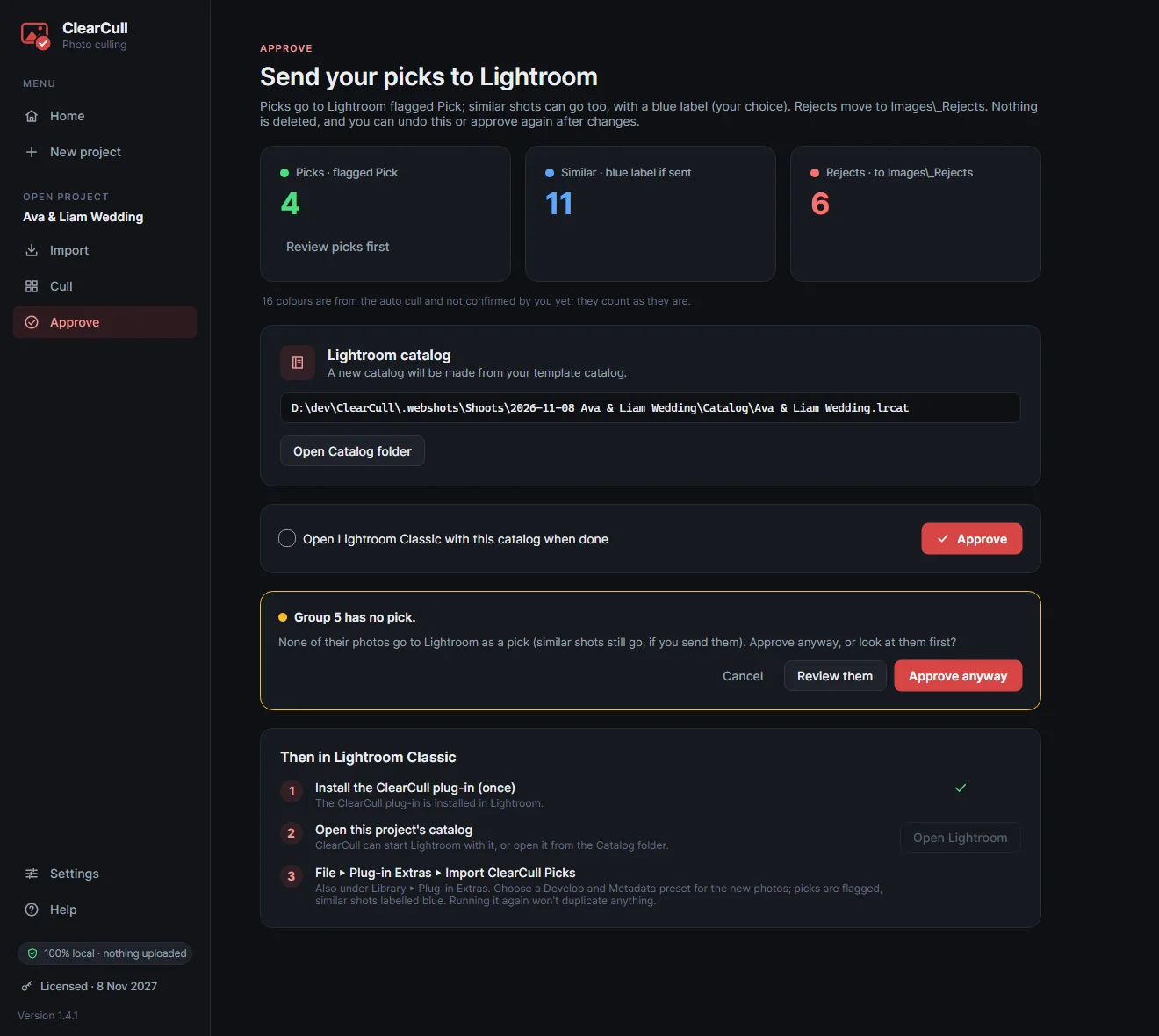
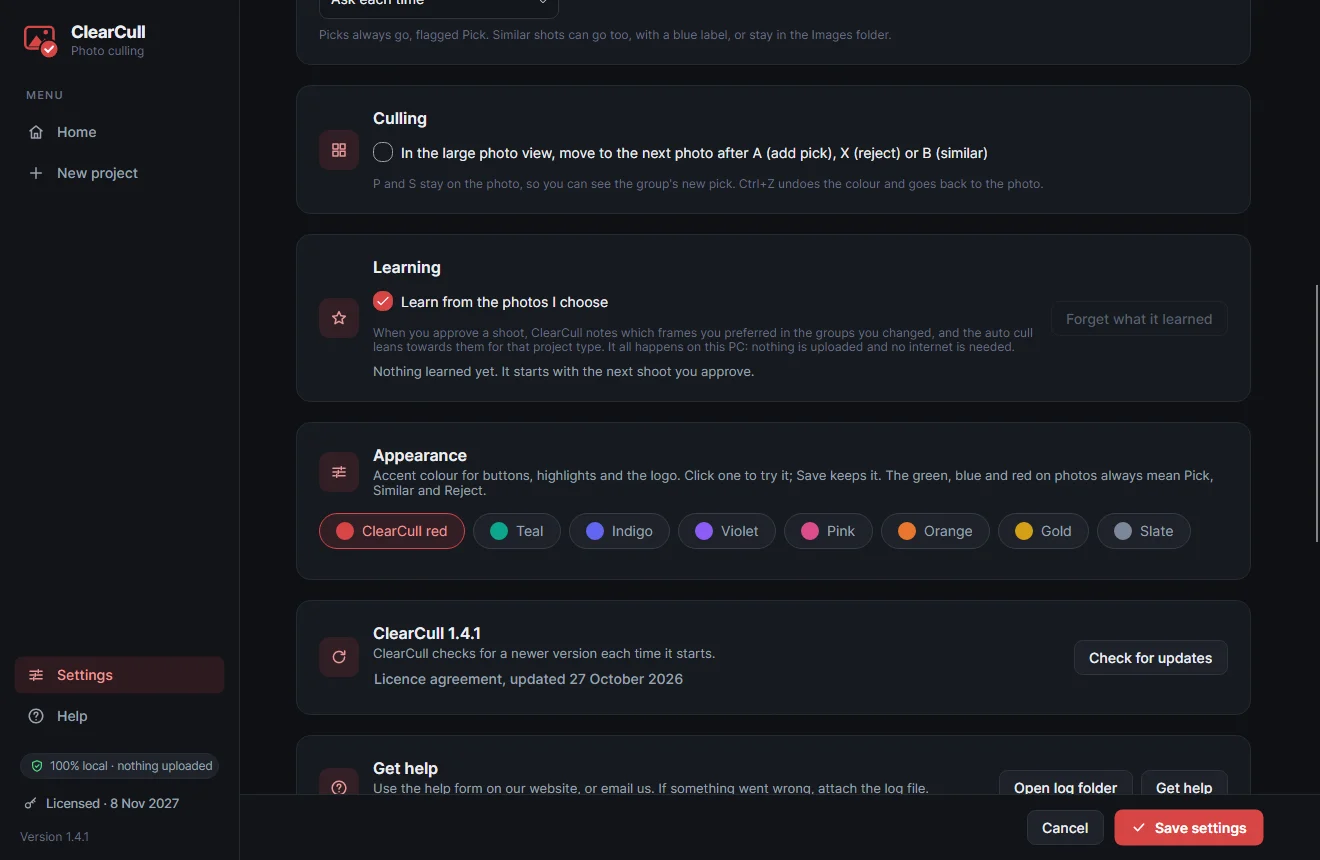
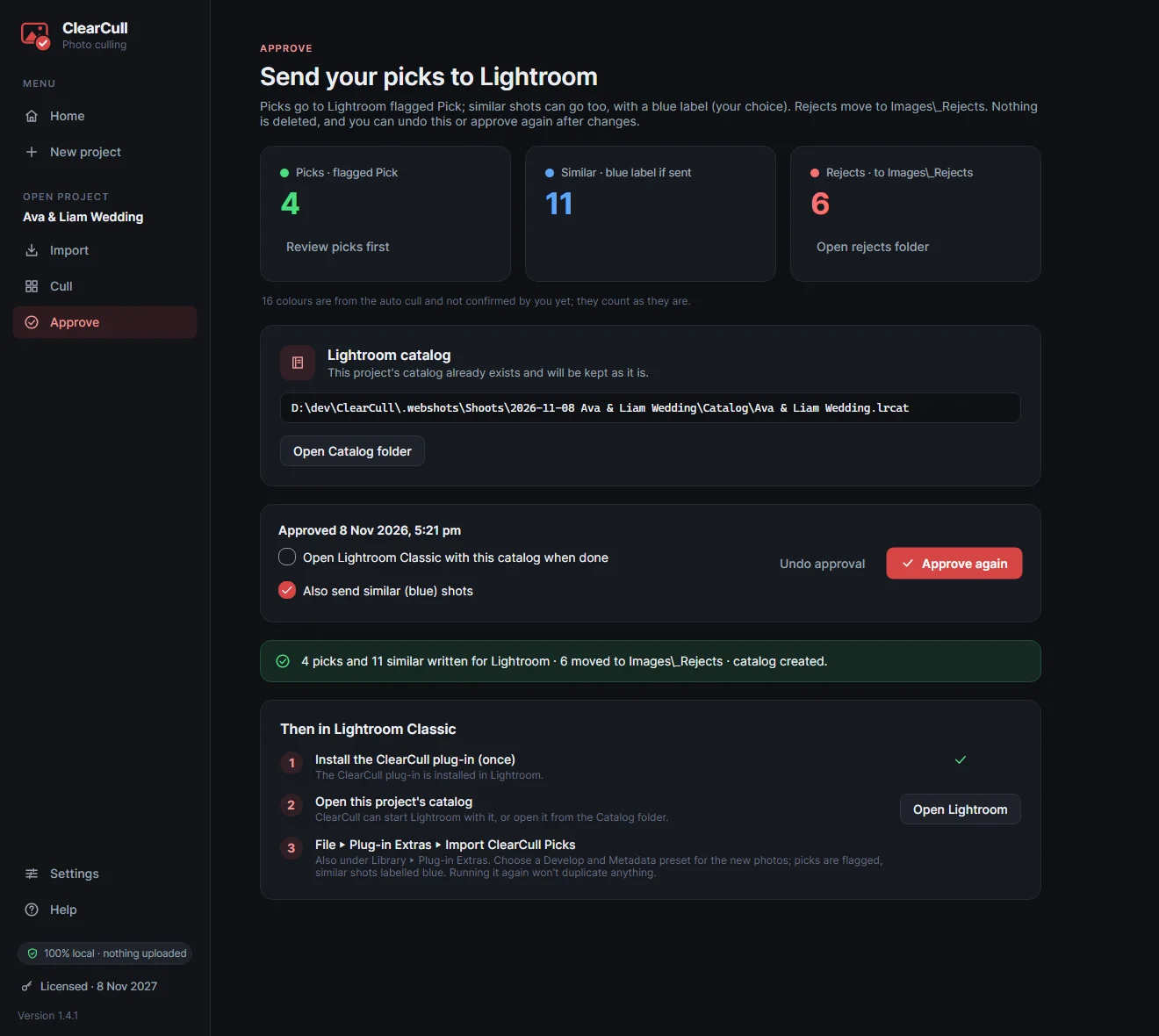
  • New in Settings ▸ After Approve: choose whether Approve opens your picks in Lightroom Classic (as before) or just moves the rejects and saves the list of picks, without making a Lightroom catalog.
1.4.0

8 November 2026 · Faster through a big wedding

  • Tuned on a real 8,000-photo wedding culled with this version.
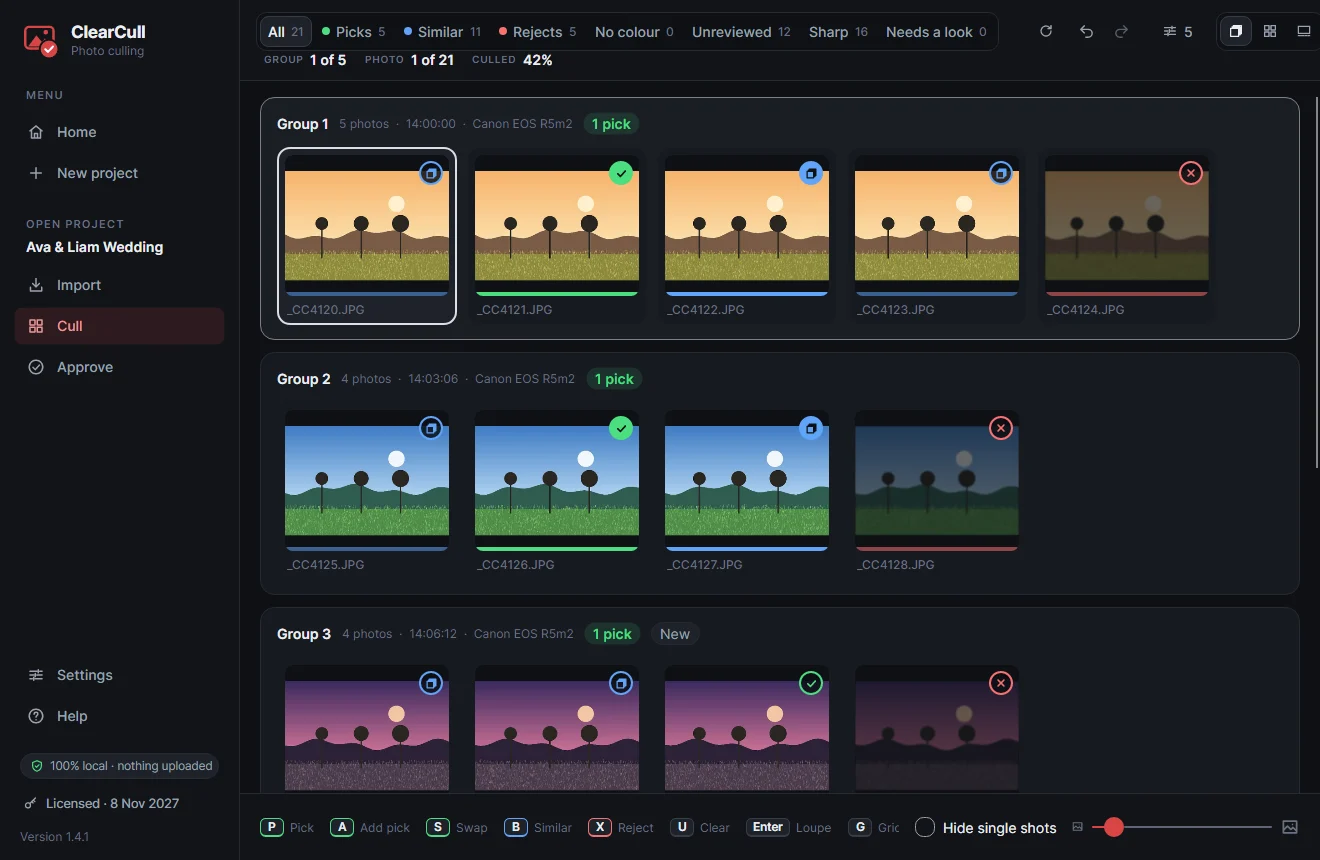
  • New keys: Home / End jump to the start or end of the group (Ctrl for the whole shoot), Ctrl → jumps to the group’s pick, and Shift X rejects the whole group and moves on.
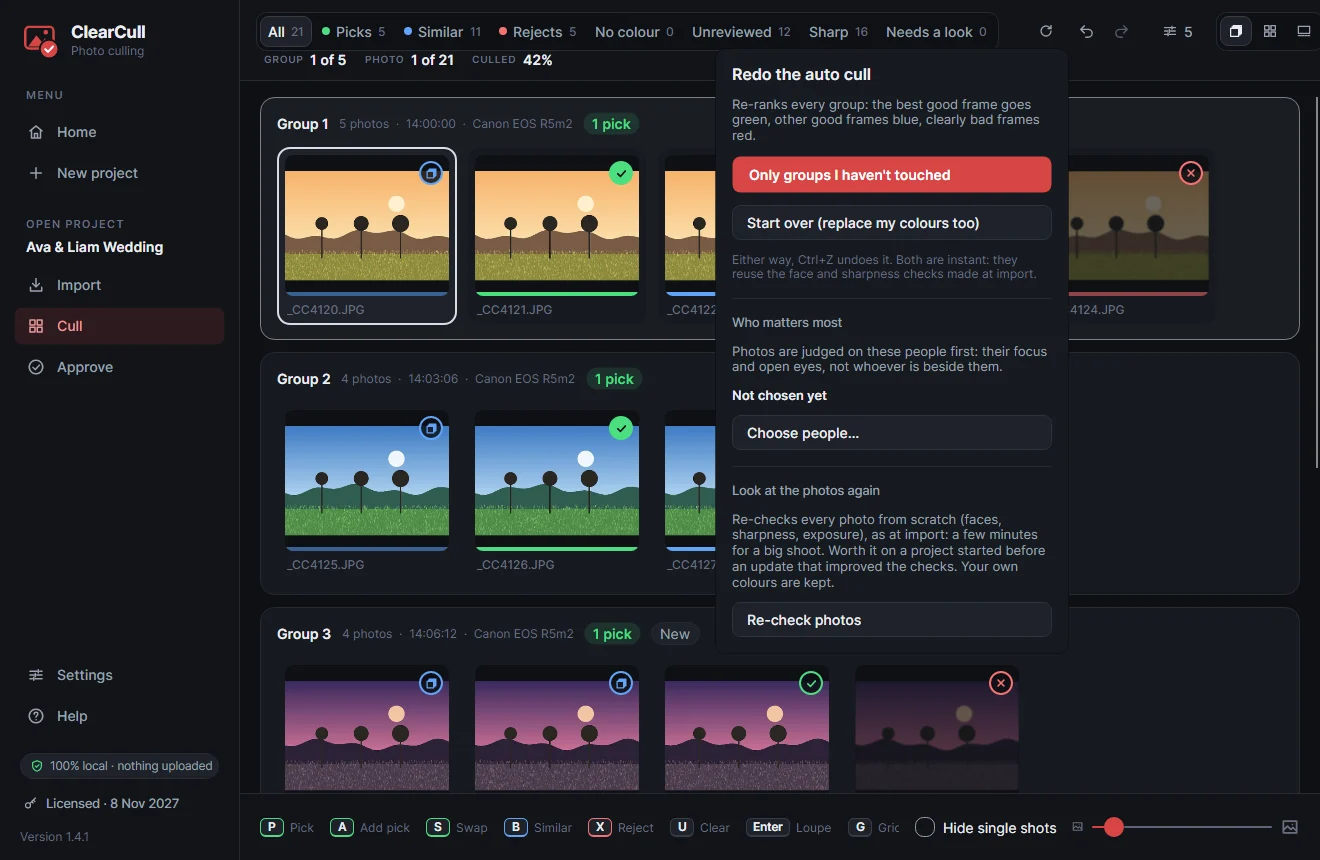
  • New filter, Needs a look: the groups you haven’t touched where the auto cull rejected every frame, so no moment slips through.
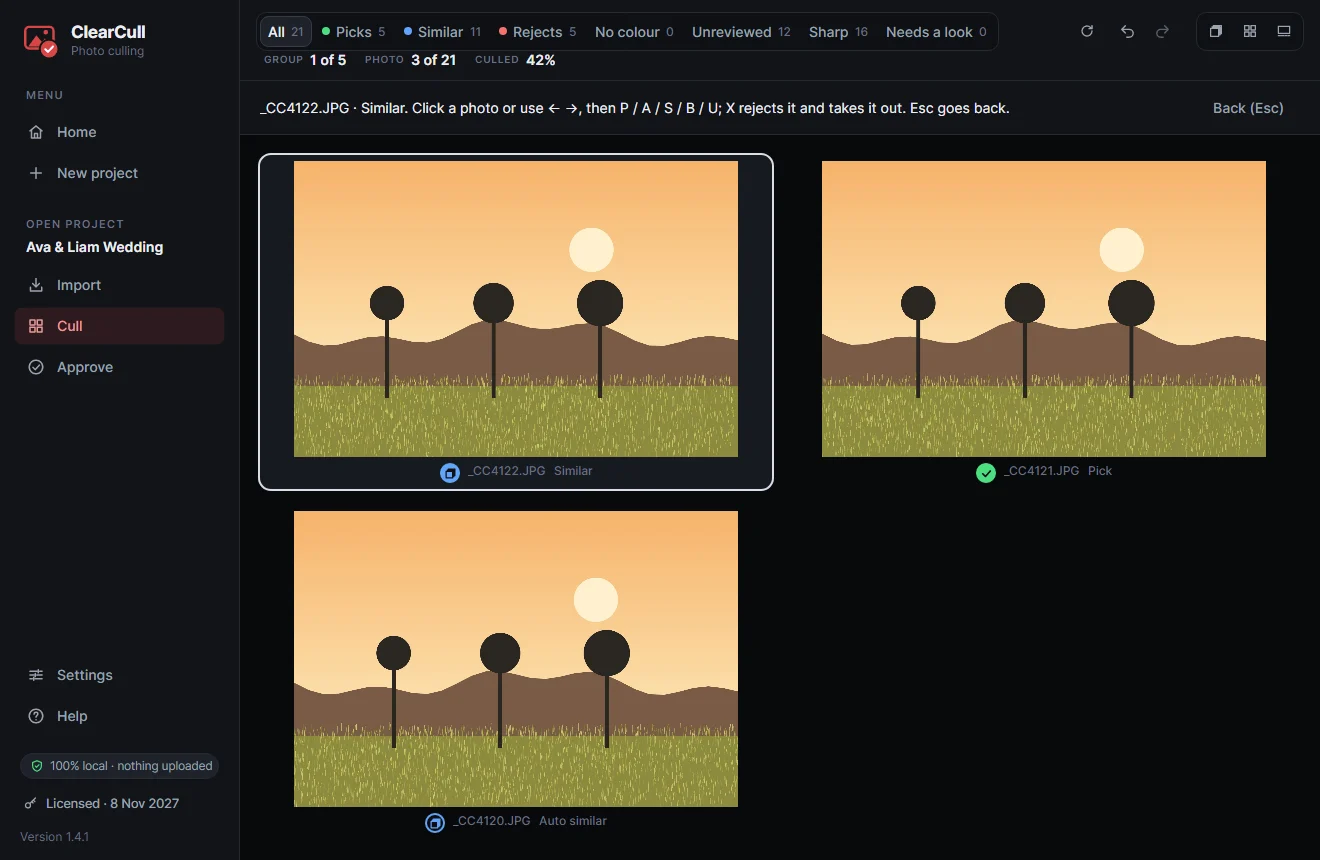
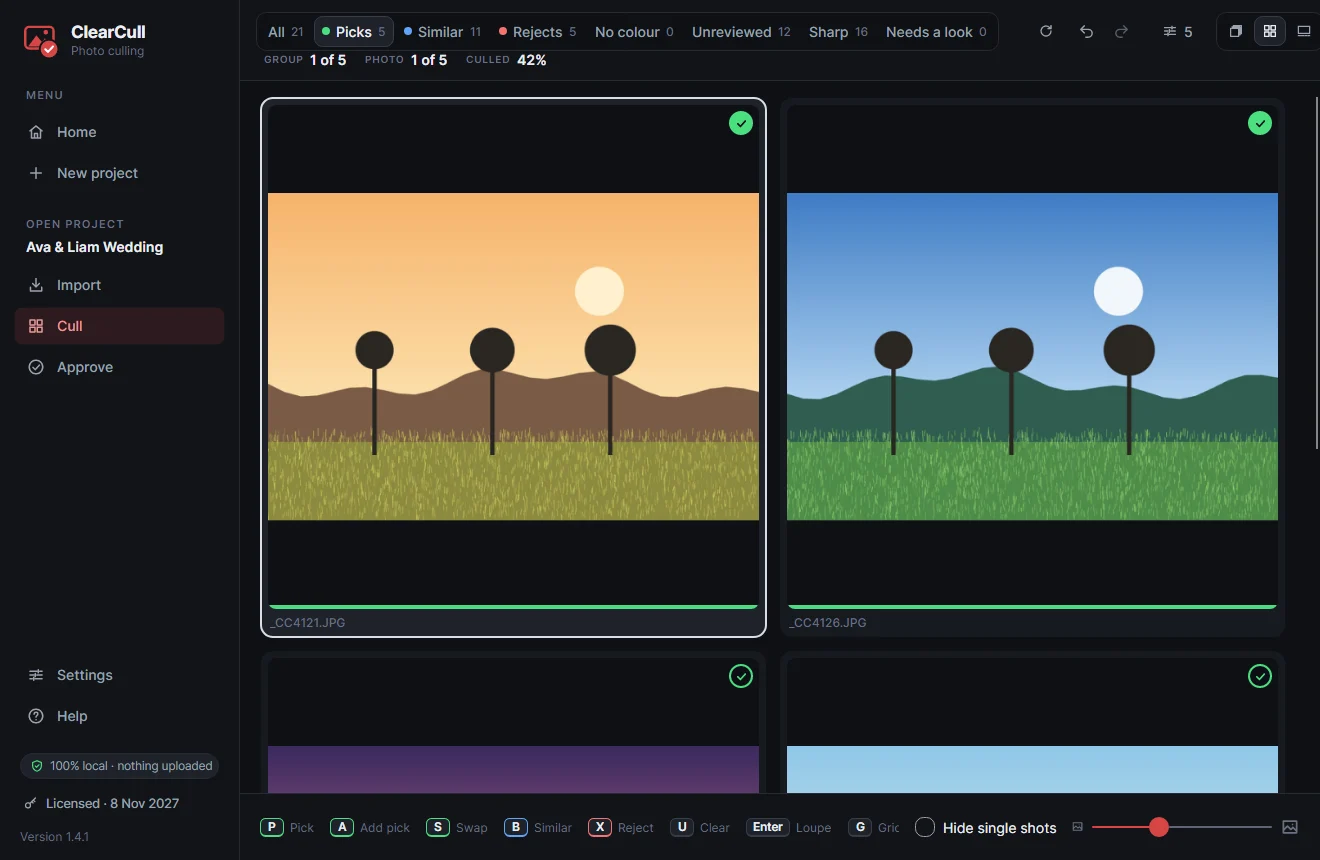
  • Along the top: which group and photo you’re on (Group 393 of 1,468, Photo 2,345 of 7,786) and how much is culled. Culled and Unreviewed count whole groups, so frames you judged in the strip count too.
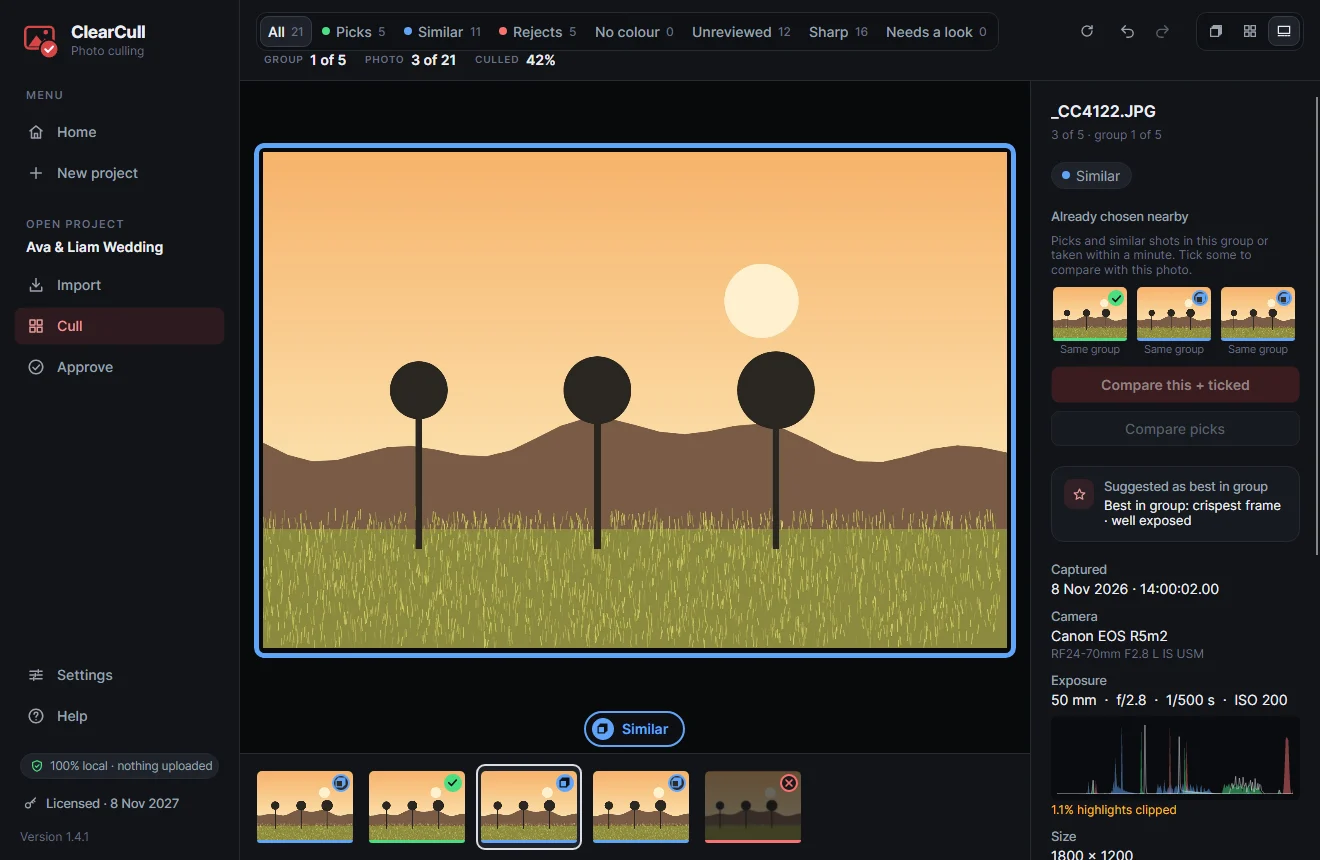
  • The colour label (Auto pick, Similar, Reject) now sits under the photo instead of over it, and grows for a moment when the colour changes.
  • The grid’s tiles can be much bigger and stay sharp: drag the slider, press + or −, or Ctrl and scroll. Ideal for a last look through the picks.
  • Eyes closed is no longer flagged for smiles, squints and heavy eyelids.
  • Dark, low-key portraits are no longer rejected when the faces are sharp with eyes open.
  • The bride and groom are recognised more strictly, so guests are no longer labelled Bride, and a photo has at most one of each.
  • Moving to the next group or to the pick is quicker: those photos are loaded ahead.
  • Fixed: the buttons in the Auto cull pop-up (Choose people…, Only groups I haven’t touched, Start over, Re-check photos) closed it without doing anything.
  • Fixed: arrowing into the next group now frames its first photo in the strip.

1.3.1

8 November 2026 · See the bride and groom at a glance

  • In the large view, the bride and groom have a label under their face ring: a veil icon and “Bride”, a bow tie and “Groom” (a star for the main people of other shoots).
  • The Faces panel lists them first, ahead of the guests, with the same icons.

1.3.0

8 November 2026 · The bride and groom first

  • New: Who matters most? The first time you cull a shoot with people, click the bride, then the groom, and the auto cull judges every photo on them first: their focus and open eyes count most, so someone else blinking beside the bride no longer rules out a great frame.
  • Choose them from the people who appear most often, or right-click a face in the large view’s Faces panel (“This is the bride”). Change it any time from Auto cull ▸ Choose people….
  • Their faces are labelled Bride and Groom in the Faces panel, and the reasons say how they look (“bride sharp · eyes open”).
  • Faces are recognised on your PC; nothing is uploaded. Projects you already have are quietly checked again the next time you open them, so every face can be recognised.
  • The Eyes closed label over a face is tidier: a slim pill that fits its text.

1.2.1

3 November 2026 · Check before approving

  • Approve stops to check when a group has no pick, and lists them (“3 groups have no pick: 4, 12 and 31”). Review them opens Cull on the first one; Approve anyway goes ahead.
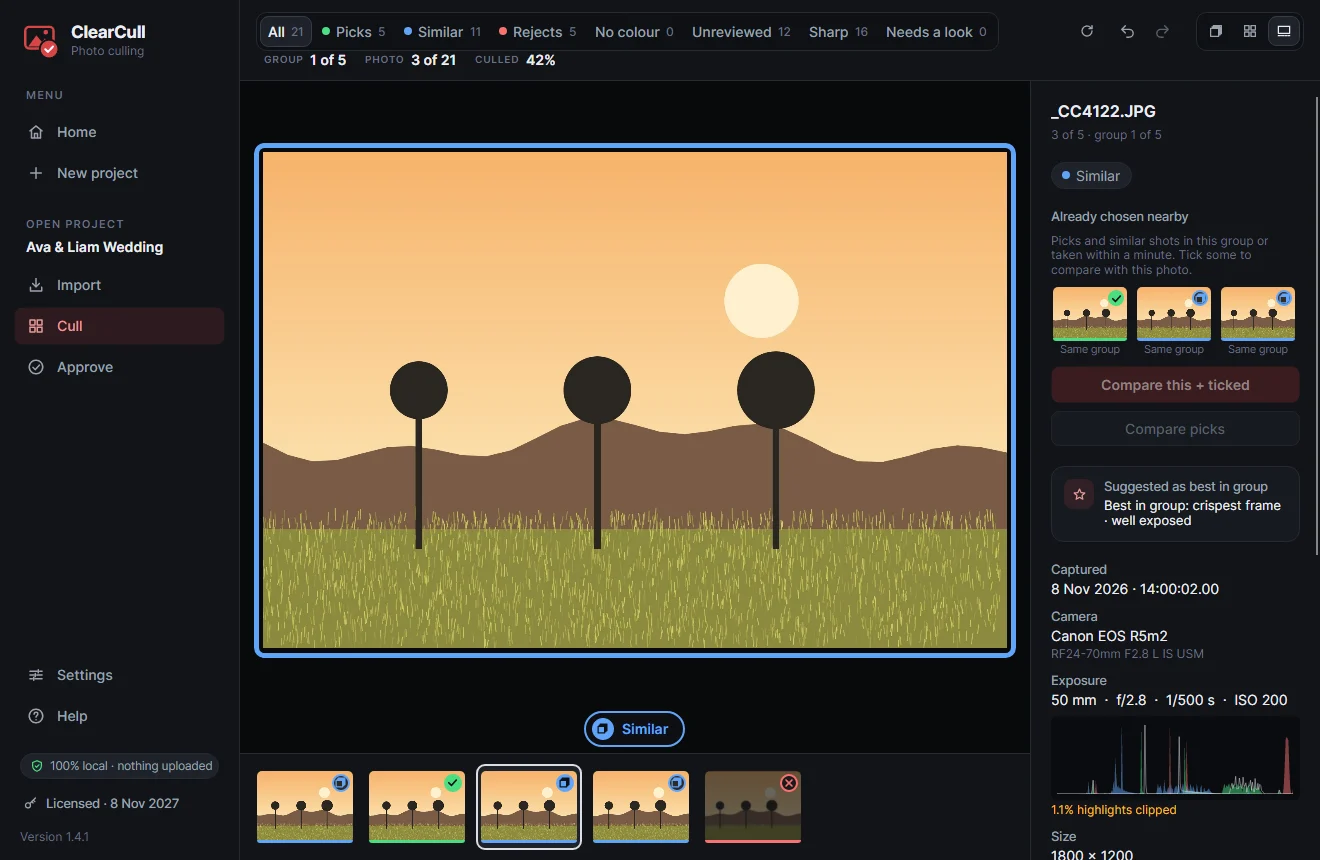
  • The colour frame round the photo in the large view is a slim, even 5 pixels, whatever the size of the photo.

1.2.0

3 November 2026 · Easier to see, compare and learn

  • The large view puts a frame in the photo’s colour round it: dashed while it’s the auto cull’s colour, solid once it’s yours.
  • A big Pick, Similar or Reject badge shows over the photo for a moment when it opens or its colour changes, so a wrong key is noticed straight away.
  • A histogram under Exposure, made from the camera’s preview, with a warning when highlights or shadows are clipped.
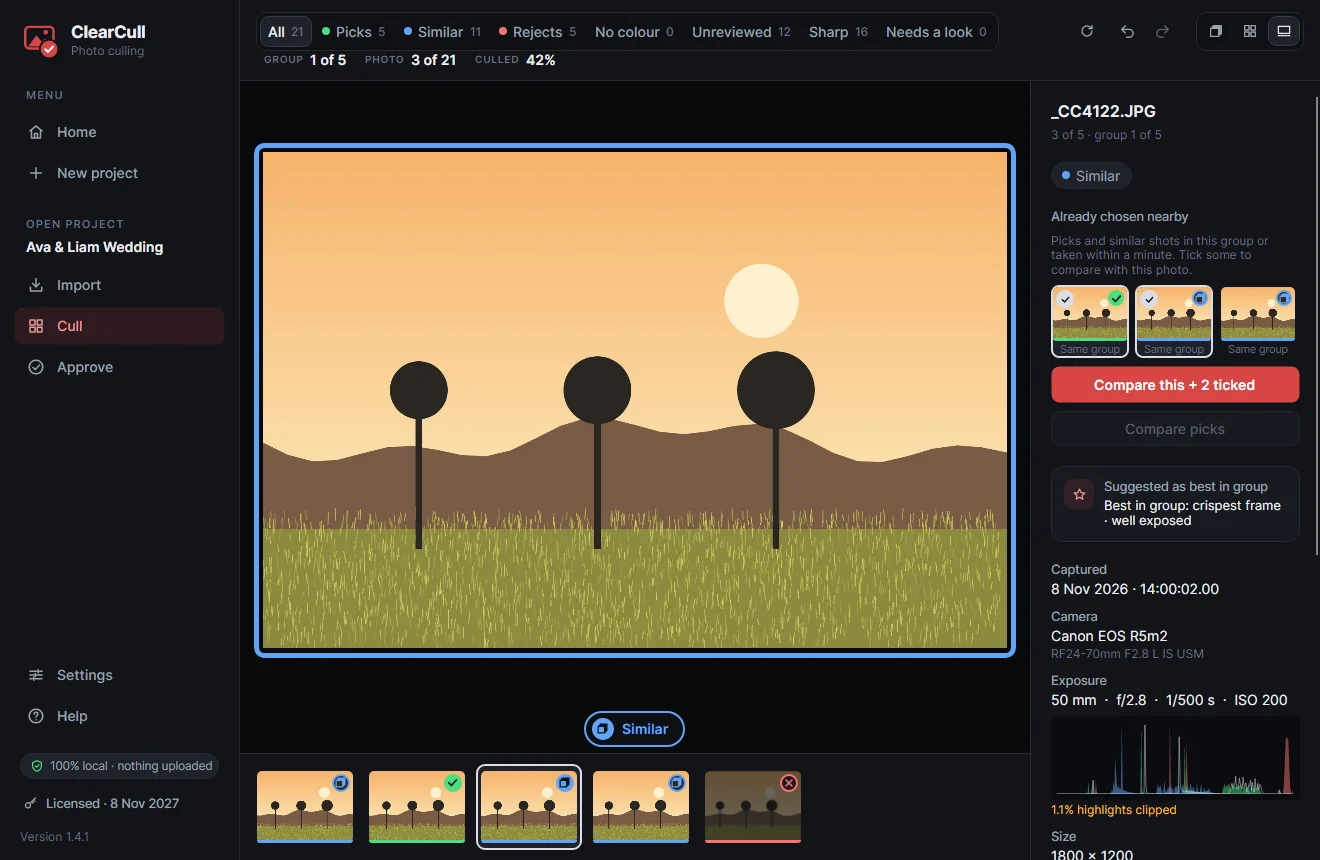
  • “Compare picks” shows every pick in the group side by side to narrow them down; the other button is now “Compare this + ticked”.
  • ClearCull learns which frames you prefer: when you approve a shoot, it notes your choices and the auto cull leans that way for that type of shoot. It all happens on your PC; turn it off or forget it in Settings ▸ Learning.
  • Settings and Help are at the bottom of the left-hand menu, with one Help link.
  • Each project reopens where you left off: on Import, Cull or Approve.

1.1.8

3 November 2026 · Narrow down a comparison

  • In Compare, X rejects the photo and takes it out of the grid; the rest grow to fill the space. Ctrl Z puts it back.

1.1.7

3 November 2026 · Already chosen nearby, and Compare

  • The large view lists the picks and similar shots already chosen in the same group or within a minute, whatever the filter shows.
  • Tick some and compare them side by side with the photo you’re on, colouring them with the usual keys.

1.1.6

3 November 2026 · Move on after marking

  • New setting (Settings ▸ Culling): in the large view, A, X and B move straight on to the next photo.

1.1.5

3 November 2026 · Filters that combine, and Sharp

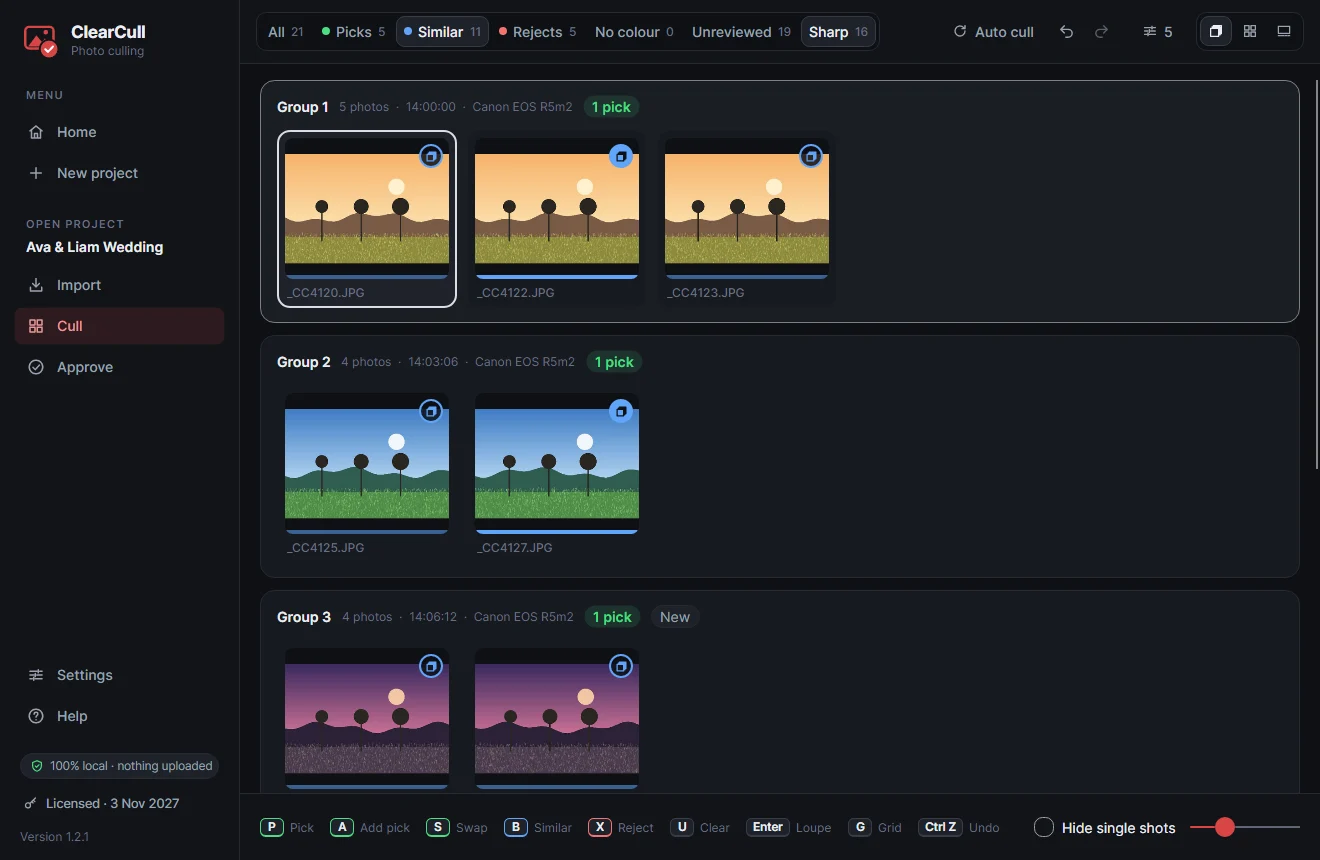
  • Turn on more than one filter: colours add up (Picks + Similar), while Unreviewed and the new Sharp filter narrow what’s shown.
  • Sharp shows photos whose faces are sharp, or, without faces, whose frame is crisp.
  • G (groups / grid) added to the keys list.

1.1.4

28 October 2026 · Choose your colour

  • Settings ▸ Appearance: pick the colour for buttons, highlights and the logo. Green, blue and red on photos still mean pick, similar and reject.

1.1.3

28 October 2026 · ClearCull in red

  • ClearCull’s own colour is now warm red, matching the website and the new app icon.

1.1.2

28 October 2026 · Help in the menu

  • Help in the menu opens the ClearCull guide on this website.

1.1.1

28 October 2026 · Getting help

  • Get help links in the app and on the error message, and the support address (every email becomes a helpdesk ticket).

1.1.0

27 October 2026 · First full release

  • The first release for sale: signed by Polychrome Limited, with the licence agreement prompt.

0.3.5

27 October 2026 · Licence agreement

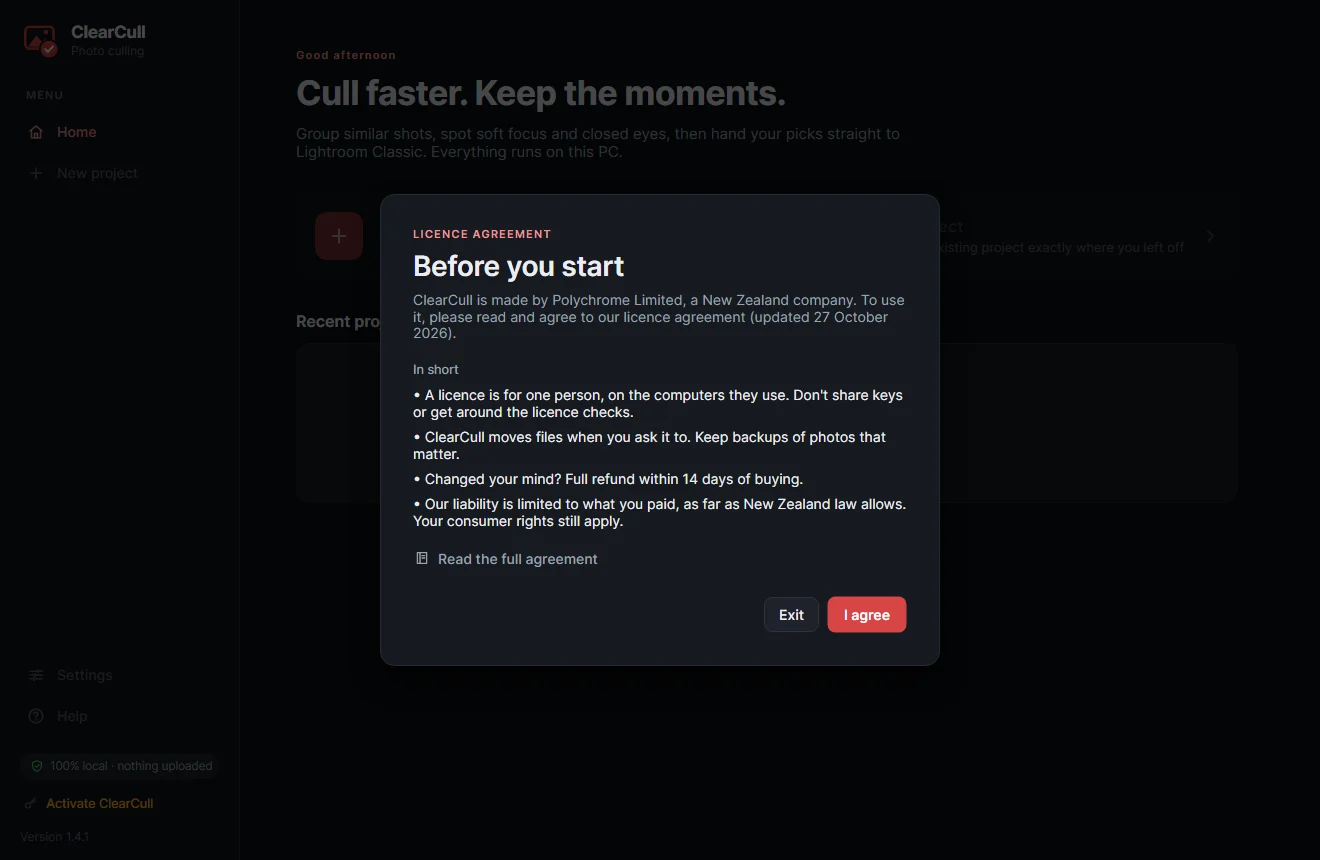
  • On first run, ClearCull asks you to agree to the licence agreement, with a short summary and a link to the full text.

0.3.4

27 October 2026 · Signed installer

  • The installer and app are signed by Polychrome Limited, so Windows no longer warns about an unknown publisher.
  • Re-check photos explains when it’s worth using.

0.3.3

26 October 2026 · Re-check photos

  • Auto cull ▸ Re-check photos analyses every photo again from scratch (faces, sharpness, exposure), keeping your own colours.

0.3.2

26 October 2026 · Auto cull says what it did

  • After Auto cull, a banner says how many colours changed, or that nothing needed changing.

0.3.1

26 October 2026 · Faster analysis

  • Checking faces and sharpness is about 40% faster: a 3,000-photo wedding is ready in about 4 minutes on a fast PC.

0.3.0

26 October 2026 · Updates

  • ClearCull checks for a newer version when it starts and offers it in a banner (Update now); you can also check in Settings.

0.2.2

26 October 2026 · Presets in the Lightroom plug-in

  • The plug-in asks for a Develop and a Metadata preset before importing, remembers them, and applies them only to photos it adds.

0.2.1

26 October 2026 · Plug-in installed for you

  • The installer puts the ClearCull plug-in into Lightroom Classic, and updates keep it current.

0.2.0

24 October 2026 · First version

  • Projects for Wedding, Portraits and Headshot shoots, with their own folders.
  • Bring photos in by drag and drop, from a folder, or straight from a memory card with every file checked.
  • Similar shots grouped by time and look; every face checked for sharpness and closed eyes.
  • The auto cull colours every photo green, blue or red, with the reason; you confirm or change it with one key.
  • Approve moves rejects aside (never deleted), makes the Lightroom catalog, and the plug-in brings your picks in.
  • Offline licence keys.

Screenshots show the screens as they look in the current version, with a made-up sample shoot.